Showing posts with label technology. Show all posts

Tuesday, May 28, 2013

iPad...my ultimate travel accessory

Pin It

We'll call this a follow-up post to my Traveling Light and Easy post.  When I travel, I like to keep myself entertained, but I don't have lots of space to bring things.  For several years, its seemed like every cool new gadget just added to the amount of things I brought along (laptop, Kindle, cell phone).  Hmmm.  Not saving much space.

Lets compare a road trip from 2001 to the one I'm planning for in a few weeks.

2001
Laptop+charger
Cell phone+charger
Portable DVD player+charger
Extra battery for DVD player+charger
MP3 player 
Headphones (Bose)
Camera + charger
2 paperback books
4 magazines
CD case with DVDs removed from their boxes (that's nothing.  One woman brought the VHS mini series of Pride and Prejudice)
zipper bags of candy like Mike and Ikes, Swedish Fish
Games (travel size scrabble, dice, yahtzee score sheets, playing cards)
Knitting
Address book
Scriptures
Guidebooks/maps
Tissues/medicines/lipbalm/wallet

2013
Ipad+charger
Iphone
Headphones
zipper bags of candy
Tissues/medicines/lipbalm/wallet
Maybe the knitting...I've kinda let that hobby go. 


Pretty dramatic huh?  I've gone from a "suitcase" size carry on to basically my purse, but I still have access to all the stuff I used to have--thanks to my iPad.  Other tablets may work just as well, but I don't have one to test out.

Here's how I made the switch:


Movies
I own lots of DVDs. Lots.  Many came with a digital copy, which I put in iTunes and synched to my iPad.  Others I created a digital copy using Handbrake and my home computer.  This eliminated the DVD player and discs.


Reading material
Wow, the iPad is great for condensing stacks of paper!  When I got the first-generation Kindle, I loved it (still do) for the ability to have tons of books, but not take up tons of space.  My iPad will do that too.  Some I  get from the public library.  Others, like classics, are free from Amazon.  Others still I buy/download. You can load the Kindle App on the iPad for free, even if you don't have a Kindle.


Magazines.  I have print subscriptions that come to my house that include the digital edition for free.  I set that up on my iPad.  My public library has an agreement with OverDrive and Flipster, which is an app that has magazines.  The app is free on iTunes and the Salt Lake County library has about 100 titles that are FREE.  Good titles too, like Martha Stewart, Consumer Reports and more.

Scriptures-these take up a lot of space :)  Plenty of free apps/PDFs out there so you can just keep it on your iPad instead.

Guidebooks/maps
Some I've bought digitally, most of the time though I just find a good travel website or app and skip buying a book altogether.

Games
Love that app store.  I have Scrabble, Words with Friends, Dice with Buddies (awesome free Yahtzee.  If there was a good real Yahtzee, I'd pay for it, but I couldn't find one). 


Other
I keep copies of my address book, ID/passport as PDFs or images on the iPad.  My iPad and iPhone use the same cable.  Sweet. I have a nice camera, and if I'm traveling for pleasure, I'm going to haul it along.  But, if not, my iPhone is good enough.  I've gotten some pretty good shots with that iPhone. (I also bought an adapter on Amazon that I can move my photos from the SD card on my good camera to the iPad...good as a back up). I can get by with a little bit of word processing on the iPad, which is great...eliminating the need for the laptop.

Label your stuff.  If you get an honest person (sometimes you do) you have a chance of getting your stuff back.

So I now have plenty of space for other things I think I need or pick up along the way.  If I were die-hard, I'd skip the iPad and load all this stuff on my iPhone.  But my eyes are not as young as they once were, and I like the larger screen of my iPad. 


Monday, August 15, 2011

Transfer books on CD to iPod

Pin It


I thought I'd do another technology post! This time its about transferring your collection of Books on CD to your iPod (It is legal to do this for discs you already own). It seems like it should be just as easy as importing a music CD, but you don't want iTunes treating a book the same as a music CD. A book on CD generally has several CDs, each broken into multiple tracks. To make listening to the book easier, you want to be able to group the tracks together, make it so that your iPod will remember where you last stopped the book and save it as an AudioBook so that it shows up in the book library and not the music library.

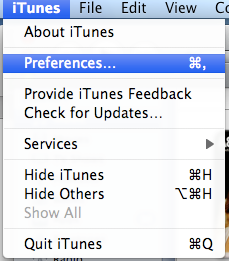
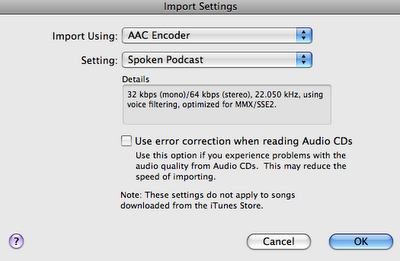
1. You need to change some iTunes settings before you begin (remember to switch them back when you are done). (iTunes-Preferences-General-Import Settings-AAC and Spoken Podcast, OK)


2. Pop in the first disc. When iTunes asks if you want to import the disc say NO--you have some stuff to do first.

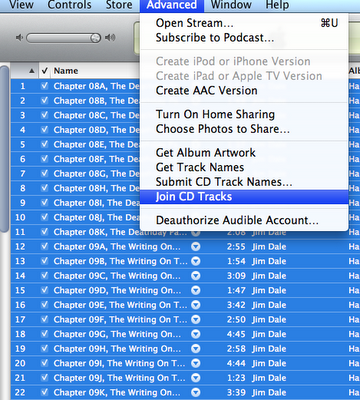
3. You need to group all the tracks on the CD into one big track. Highlight the first track, then hold down the Shift button while you highlight the last track. This will highlight all the tracks. Click the Advanced menu and choose Join Tracks. Now instead of a disc with 15-20 tracks, you have just one...much easier to work with-you'll know it worked because there will be a bracket along the left side of the track titles (and everything shifts a bit to the right).

4. Now you can click on the Import CD button in the bottom right corner. It will probably take about 10 minutes per disc.

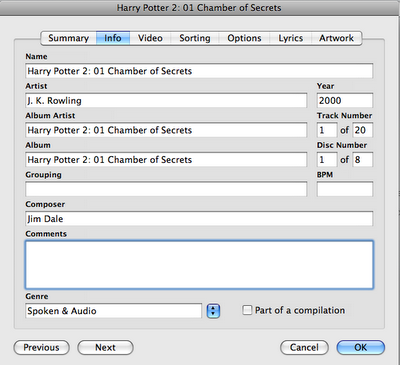
5. Next you should change the album info and the easiest way is to go to the Recently Added section and right click on your recently added disc and choose Get Info. On the Info Tab, I like Artist=Author and Composer=Narrator. I also put the disc number in the title (so that when I see the list of 8-12 discs, I know which one is which). You can ignore the track info. Make sure that Spoken & Audio is the type.

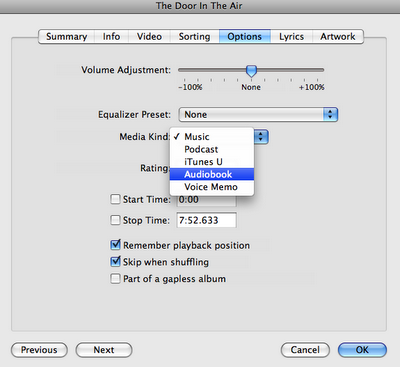
6. On the Options tab make sure the Media type is audiobook and that the boxes for Remember playback and Skip when Shuffle are checked (that way the iPod can start right where you left off, and it won't ever dump your book into your random music shuffle). I also like to add album art on that tab, but you can skip it.


7. Now you repeat the process for each of the discs in the book.

8. Don't forget to set your iTunes back to the Music CD settings!

So, it took about an hour or so for an 8 disc book, but now I can listen to it while I'm on the treadmill. Yay, I'm always looking for ways to make the treadmill more fun.


Tuesday, June 14, 2011

iPad, Handbrake and DVDs

Pin It

I realize I've been very un-projecty lately. I've been really swamped trying to wrap up the school year at work and getting ready for a choir trip next week. Speaking of my trip, I finally got my iPad (I had ordered one from a store here in town who said it would be a couple weeks...which turned into 8...which led me to the actual Apple store where I bought one 10 minutes after walking in the door). Ha. So, for my trip, I of course want to have my new iPad loaded up with lots of movies. I have several already in my iTunes, but I've seen all of those LOTS of times since I use my iPod while on the treadmill.

I thought I'd share some of the tricks I've learned about taking discs I already own and converting them into digital files for my iPad. First, I have a Mac laptop, but I think the software works on PCs too. I downloaded the program Handbrake (here) first.

Put in a dvd (not a blu ray) and let the Mac's DVD player get started and get into the actual movie (not just the previews or the menu, but the actual movie).

Right click on the movie screen and look for the Title menu, look to see which title has a check mark next to it.

You see, it is important to know which title on the disc has the actual movie and not the title that has the extra features or the fake-out movie version (Ah-ha, perhaps you've tried Handbrake before and ended up with a movie that skips the chapters all out of order? That is because Handbrake will default to the longest title, and sometimes the DVD maker puts fake long titles on the disc that are all scrambled).

OK, now you know exactly what Title you need, stop the movie and open up Handbrake.

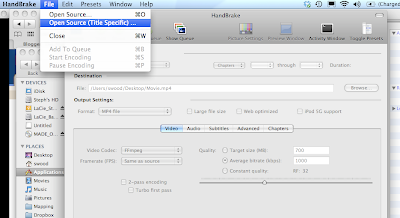
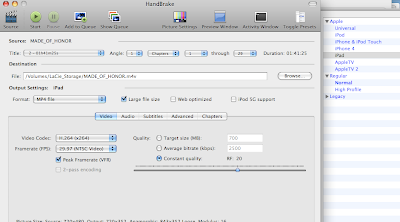
Click on the File menu and choose "Open Source (Title Specific). Do not use the movie-clapper icon that says "source"--otherwise it will scan all the titles on the disc (which takes a LONG time, sometimes stalls and sometimes chooses the wrong title).


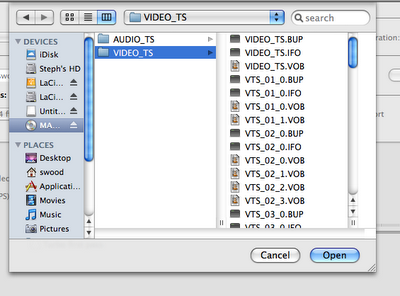
Click on the DVD icon and then on the video file


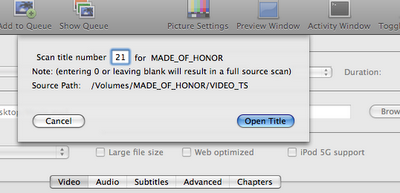
A window will pop up asking which title, so type it in (in my case, title 21...this can vary from dvd to dvd)


Now the program will scan just the correct title (instead of all 98 extra fake ones).

Be sure to click the type of output device (iPhone, iPad, etc...) over on the right side.


There is also a line to tell the computer where you want the finished file to be saved. I change it to my external hard drive so that I don't slow down my computer with lots of large movie files (each about 1 gig), but you can put it wherever you want.

Click the green start icon near the top of the window. Should take between 30-45 minutes.

When its done, I open up iTunes, click Add to Library and browse to where I saved the movie file. I then right click on the movie in iTunes and choose Get Info so that I can add in the cover artwork--which I have previously found online and saved in the album art file of iTunes (note: if you are buying stuff directly from iTunes, or a have a free digital code that came with your movie, the artwork will show up automatically).

So, now you can start moving your giant collection of DVDs to your computer. Hours of entertainment await :)